Pictures side by side, and the sum that sizes the file
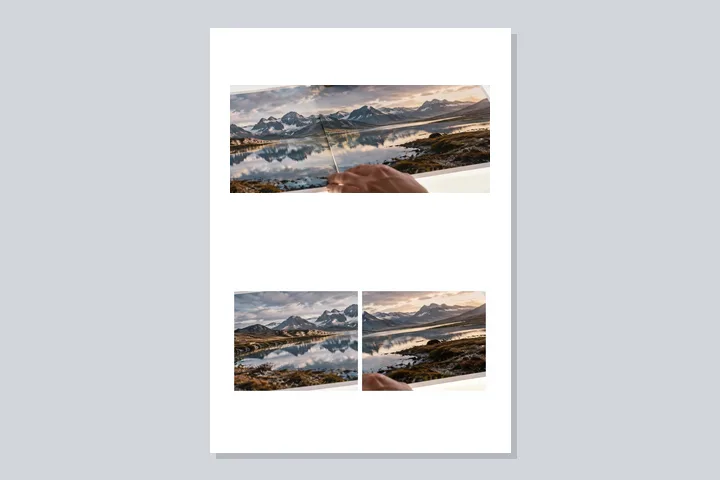
Most of the time, combining pictures means setting them beside each other so that each stays whole: a before and an after, three product shots in a row, a dozen frames in a grid. The board above does that for as many pictures as you bring. The order in the tray is the order on the board, and the five arrangements — side by side, stacked, a grid, packed columns and free placement — are five ways of reading that order onto one rectangle. Mixed sizes are the normal case rather than the awkward one, so each arrangement says exactly how it reconciles them: matched to the smallest, left at their own pixels, or put into equal cells that either show the whole picture or crop it and say by how much.
The size of the file is never a surprise, because it is printed as the sum of what made it. Margins and gaps are fixed pixel amounts, the pictures scale, and the rulers along two sides of the board carry each part at the scale you are looking at. Drag any gutter and every gap follows, with the sum changing as you go.
What blending does to two photographs
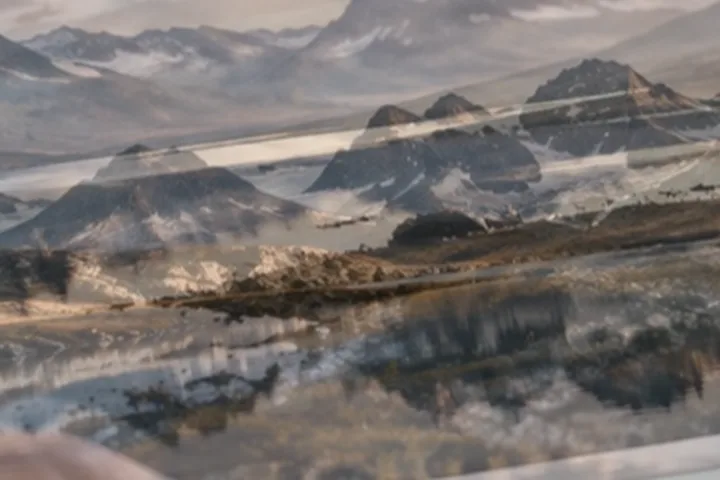
There are three ways to put two pictures together. They can be set beside each other so that both stay whole and neither is covered, which is the board. One can be cut down to an element with its own edges and laid on the other, which is a different tool. Or they can be made the same size, stacked exactly, and reduced to a single frame in which every pixel is a function of the two pixels underneath it. The third one is blending, and it is the Blend switch at the end of the arrangement bar: two slots rather than a board.
The function is what the mode names. At normal it is a weighted average, which is what an opacity slider has always meant. At multiply it is a product, so the two frames behave like transparencies on a lightbox: white in either frame disappears and dark survives. At screen it is the complement of that product, which is two projectors aimed at the same wall. Twelve such functions ship here. Each is one line of arithmetic applied to red, green and blue separately, which is precisely what makes them predictable enough to learn.
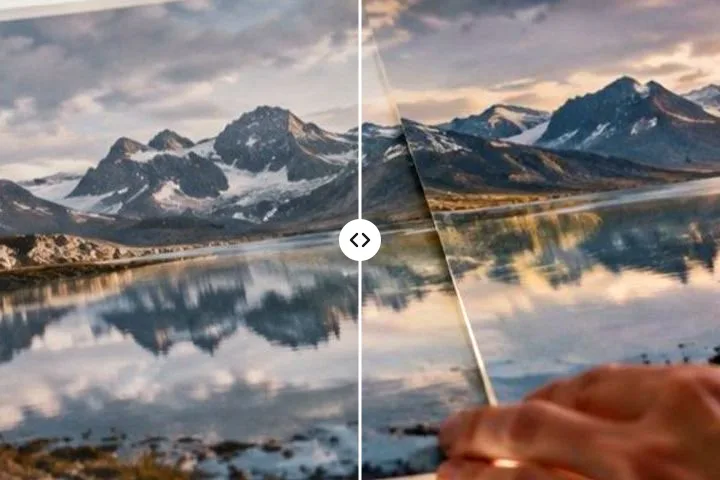
Two further controls change where the function reaches rather than what it computes. Opacity scales the layer’s contribution everywhere at once, and the divider lying across the picture is that number with a grip on it. A gradient mask scales the contribution differently in different places, so one photograph can be at full strength along one edge, absent along the other, and ramped smoothly between the two. That is the control single-slider tools cannot offer, and it is the answer to almost every question that starts with fading one photograph into another.
The four-step pass
- Fill both slotsDrag, click, or paste into whichever slot has focus. The first slot is the base — it sits underneath and, unless you say otherwise, its dimensions are the dimensions of the file you save. The second is the layer. Press X at any time to exchange them, which for half the modes here changes the result completely and is the quickest way to find out which half.
- Reconcile the two shapesTwo photographs almost never share an aspect ratio, so the layer is fitted to the frame by cover, contain or stretch, then scaled between 50 and 200 per cent, nudged, and flipped if it helps. What it is never given is a position of its own inside the picture. A second image with visible edges of its own is a different operation and a different tool; here the layer is always the whole frame.
- Choose the function, then the amountThe rail under the picture renders every mode from your own two frames, at thumbnail size, so you are choosing from twelve real answers rather than twelve words. Twelve is the whole set here and it is a deliberate twelve: these are the separable modes, the ones that work on each colour channel by itself and can therefore be written down as one line of arithmetic and checked against it. The four non-separable modes — hue, saturation, colour and luminosity — operate on all three channels at once, cannot be verified the same way, and are not in this build. Pick one, then set the amount with the divider or with the slider that mirrors it. Square brackets move it five at a time; B walks along the rail.
- Fade it, then save itTurn the gradient mask on if the blend should be partial across the frame, and drag the two handles that appear on the picture — full strength at the first, nothing at the second, with the angle read out beneath. Then export as PNG or as JPEG with a quality control. What is written is the same composite you approved, recomputed at full size through the same code.
The preview works on copies no longer than 1,600 pixels and the export re-runs the identical pipeline at native size. Every position in the tool is stored as a fraction of the frame rather than as a pixel count, so the only difference between the two passes is one multiplier. Nothing you looked at can arrive different in the file.
Inputs, outputs, and where they stop
- Opens
- JPG, PNG, WebP and GIF everywhere; TIFF, BMP and ICO in most browsers; HEIC and HEIF through a decoder fetched only when one of them actually turns up. Animated GIF and WebP contribute their first frame and say so.
- The board
- Up to 48 pictures (24 on an iPhone or iPad). While you arrange, each is held as a working copy no longer than 1,280 pixels; the export reads every file again, one at a time, and draws it at full size through the same layout. The saved board can be up to 16,384 pixels a side and about 120 megapixels (8,192 and 16 on iOS) — past that the size is reduced and the panel says so. It writes PNG, JPEG or WebP; transparency survives in PNG and WebP. Sixty steps of undo, including taking a picture off the board.
- Colour
- Whatever your browser hands back when it draws a file onto a canvas, which on current engines means sRGB — a default of theirs rather than a conversion this build asks for or tests. A Display P3 photograph will usually lose the saturation that lived outside sRGB, which matters here more than on a one-picture tool because the shift lands on only one of the two frames and the blend then carries it.
- Alpha
- A layer with transparency is mixed from un-premultiplied channels, which is the only way a soft edge survives a gradient mask without darkening. A base with transparency keeps it, and the composite is written with the alpha the arithmetic produced.
- Blend size
- 120 MB per file. The megapixel ceiling is judged on the two frames together rather than on either alone, because the composite needs as much room again as the pair does. Over the soft cap the tool offers lighter working copies as a question; over the hard cap it declines and gives you the number.
- Blend writes
- PNG, JPEG or WebP (where the browser writes it) with a quality control, at the base frame's dimensions or at the larger of the two. The readout beside the button states the format, the pixel dimensions, the working space and the render path before you press it.
- Blend undo
- Thirty steps, on every control including the mask handles. Emptying a slot is not one of them — the bitmap is released when the slot is cleared, and an undo that restored an empty frame would be worse than none.
Alignment here is translation only. Auto-align finds the shift that lines the layer up with the base and moves it; it does not rotate, scale or warp either frame, so two handheld shots taken from different angles will still disagree at the edges. Difference and exclusion subtract one frame from the other and show that disagreement as noise, which is an accurate report rather than a bug. When the match is ambiguous, nothing moves and the panel says so.
And the mixing here is geometric, not photometric. Nothing measures the two exposures against each other, so two frames shot a cloud apart will blend at whatever brightness they arrived with; the black-point lift is a manual control rather than a matching pass. If a blend looks wrong before you have touched anything, the two frames probably disagree about exposure, and that has to be settled in whatever you took them out of.
Things people ask
How many pictures can I combine at once?
Up to 48 on the board (24 on an iPhone or iPad, where the browser gives a page less memory), in a row, a column, a grid, packed rows or placed freely. The blender takes exactly two, because it mixes two full frames into one pixel by pixel. If you only have two pictures, both instruments are open to you: the board sets them beside each other, Blend mixes them.
Are my photos uploaded anywhere?
No. Every picture is decoded, laid out or mixed, and saved by this browser tab. There is no upload server to send them to, a build check refuses network calls in any code that touches image data, and an automated browser test exports real files and fails if any request leaves the page carrying data.
Which formats can I open and save?
Open JPEG, PNG, WebP, GIF (first frame), BMP, AVIF where the browser supports it, and HEIC/HEIF from phones — the HEIC decoder is part of this site and loads only when one is opened. The board saves PNG, JPEG or WebP, and JPEG and WebP can be aimed at a file-size limit in kilobytes. The blender saves PNG, JPEG or WebP where the browser can write WebP.
Should I put my pictures side by side or blend them?
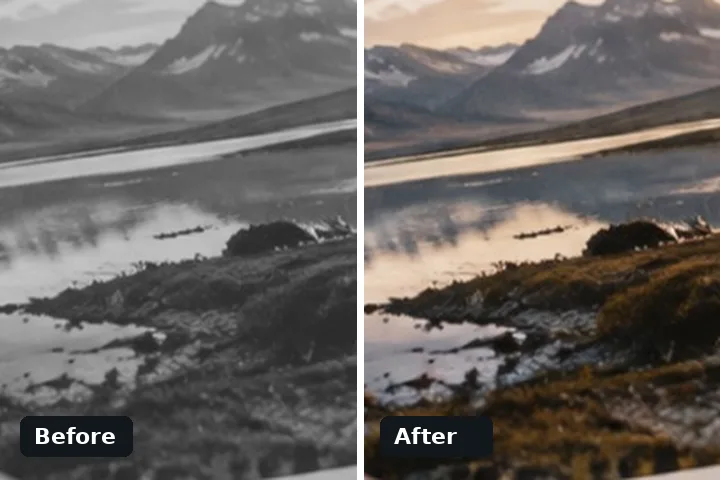
Set them side by side when both should stay whole and readable — a before and after, two product shots, a grid of holiday photos. The output is wider or taller than either picture. Blend when the two should become one frame — a double exposure, a fade from one scene to another, a texture laid over a portrait. Then every pixel of the result is a mix of two pixels and the output is the size of one picture.
My pictures are all different sizes. Will any of them be stretched?
No. Side by side with matched heights scales every picture to the height of the shortest one, so each keeps its own proportions and none is enlarged past its own pixels. Natural size leaves every picture at exactly its own pixel size and aligns them along the top, middle or bottom. Equal cells is the only setting that changes what you see of a picture, and it says so: each cell either shows the whole picture with background around it, or fills the cell and crops the overhang — and a cropped cell carries a label with the share it cuts away, which you can drag to choose what stays.
How is the size of the saved file worked out?
It is a sum, and the board prints it. Across a row of four it is margin + picture + gap + picture + gap + picture + gap + picture + margin, and the rulers along the top and side of the board show the same parts at the same scale. Gaps and margins are fixed pixel amounts; set an exact output width and the pictures are scaled so the sum lands on it precisely, with the gaps staying the size you chose.
The divider is at the far right and the layer still is not solid. Why not?
Because the divider sets how much of the layer is applied, not whether the base is still involved. Only in normal mode does a layer at 100 per cent replace what is underneath it. Screen, multiply, difference and the rest are functions of both frames at every setting, so at full strength you are seeing the function's own answer rather than one photograph. If you want the layer alone, normal at 100 is the setting; every other mode will keep some of the base by definition.
Which photograph belongs in slot one?
The one whose dimensions you want the saved file to have, because the base sets the output size unless you switch the export to the larger of the two. Then check the order a second time: multiply, screen, darken and lighten give the same result whichever way round they go, but overlay, hard light, colour dodge and colour burn do not, and difference changes sign. Press X to swap the slots and watch what moves — that is the fastest way to learn which modes care.
The texture has swallowed the face. What do I turn down first?
The highlight key, then the black point, then the opacity, in that order. The key restricts the layer to the parts of the base that are already bright, which is what keeps a silhouette readable; raising it from zero is usually the whole fix. The black-point lift is the control that decides whether the layer's shadows sit on the base or vanish into it. Opacity is the blunt instrument and should be the last thing you reach for, because it dilutes the effect everywhere including the places that were working.
My two photographs are different shapes. What happens to the second one?
You choose, in the layer geometry panel. Cover scales it until it fills the frame and lets the overhang fall outside, which is the right default and loses the edges. Contain scales it until all of it is visible and fills whatever is left with the pad colour you picked. Stretch forces it to the frame's proportions and distorts it, which is occasionally what a texture wants and never what a face does. Scale and the two nudges then move it within those rules, between half size and double.
Difference gives me coloured noise rather than a clean outline.
Then the two frames are not registered, and no setting here will fix that. Difference subtracts one frame from the other, so it only produces a clean result when the two were made from the same position: a tripod, a locked phone, or two exports of the same file. Handheld frames taken seconds apart are misaligned by tens of pixels, and the mode reports that misalignment faithfully as noise. Either align them by hand with the nudge controls, or pick a mode that does not depend on registration.
Will the same settings give the same picture on a different browser?
That is checked rather than assumed. When the engine loads it blends a 256-by-256 frame containing every possible pair of channel values through the browser's own compositing, compares the result against the arithmetic in this site's reference implementation, and records which modes came back identical. Modes that match are drawn by the browser, which is fast. Modes that do not are computed here, pixel by pixel, from the reference. The mode panel says which of the two produced what you are looking at.
Nearby
More ways into the same two instruments, and a shelf of written pages. The routes below open this page’s tools with different settings already made — the board set up for a before-and-after pair, the blender with the double-exposure recipe loaded, all twelve blend modes drawn at once from whatever you have opened — and none of them is a separate tool. The reference index collects the longer answers, the ones that need paragraphs rather than a panel.