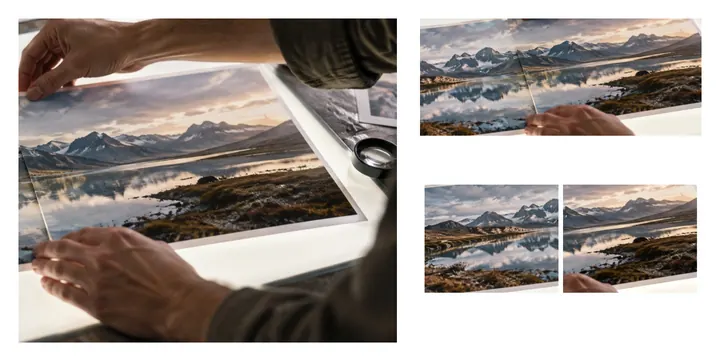
When a layout should be yours, not a grid's
Rows and grids decide where every picture goes. Sometimes you want to decide: a big photo with two small ones beside it, a picture set off-centre, a gap where a caption will be added later. This page opens the board's free canvas — a fixed size you set — and lets you put pictures together by hand, while snapping keeps edges and centres honest.
Placing pictures in four moves
- Add the picturesThey arrive in a cascade from the top-left corner, a third of the canvas wide.
- Drag them into placeEdges and centres snap to the canvas and to each other; turn snapping off under Layout.
- Size each oneDrag a corner, or type a width — the height follows the picture.
- Export the canvasThe file is the canvas size you set, with nothing cropped from any picture that lies inside it.
Where it stops
Pictures keep straight edges and full opacity here. There are no stickers, frames, cut-outs or rotation by degrees — quarter turns only. A part of a picture dragged off the canvas is not in the file.
Questions people ask
How do I put pictures together exactly where I want them?
Drag each picture on the canvas; drag its corner to make it larger or smaller. Snapping pulls edges and centres into line with the canvas and with the other pictures, and the guides show what it lined up with.
Can I type positions instead of dragging?
Yes. Select a picture and its X, Y and Width fields appear under Picture. Arrow keys move the selected picture one pixel, Shift ten.
How big is the canvas?
1,600 × 1,000 px to start. Set any width and height under Layout, or press a preset under Output such as Instagram square or Story 9:16.
Can pictures overlap?
They can sit on top of one another — the tray order is the stacking order, last on top. Each picture stays whole with straight edges; nothing is masked or blended here (that is the blender's job).
Will a picture be stretched?
No. Resizing keeps each picture's own proportions; only the width is yours, and the height follows.
Are my pictures uploaded?
No. They are placed and drawn in this tab, and the file is written here.