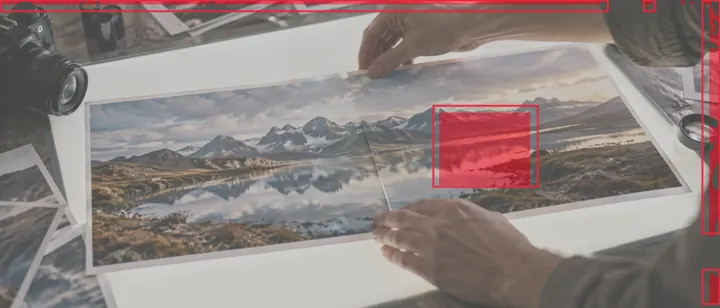
Difference is subtraction, so alignment comes first
The difference between two photos, pixel by pixel, is |first − second| on each channel: black where they agree, bright where they do not. That makes it the most honest comparison there is — and the least forgiving, because a photo shifted by a single pixel differs along every edge. So this page opens with alignment in front, and the change map reads the difference only after you have lined the two up.
Comparing two photos
- Load the two photosThe earlier one as the base, the later one as the layer.
- Auto-alignThen nudge with the arrow keys until the edges vanish.
- Set the thresholdWatch the share and the boxes settle on what really changed.
- SaveThe change map PNG, or the difference image with Export blend.
Where it stops
Alignment is translation only. Photos taken from different positions, zoom levels or angles will show their geometry as change. There is no perceptual similarity score and no object recognition: this reports pixels, not meaning.
Questions people ask
How does it find the difference between two photos?
It subtracts one from the other, pixel by pixel (the difference blend mode at full strength), after lining them up. Every pixel whose largest channel difference is above the threshold counts as changed; the changed pixels are tinted red over the first photo, and connected changed areas are boxed.
Why does almost everything show as changed?
Because the two photos are not lined up. A one-pixel shift makes every edge look different. Press Auto-align first (it finds the shift by phase correlation), then nudge with the arrow keys; a photo taken from a different spot or angle cannot be lined up by a shift alone.
What should the threshold be?
Start at 32/255. Lower picks up faint changes and JPEG noise; higher keeps only strong changes. The share of changed pixels and the regions update as you move it.
Is this a similarity score?
No. It says where and how much the pixels differ — never whether two photos are 'the same picture'. Two photos of the same scene in different light will differ almost everywhere.
What can I save?
The difference image itself (Export blend) and the change map — the first photo dimmed, changed pixels in red, regions boxed — as a PNG at full size.
Are my photos uploaded?
No. Both are decoded and compared in this tab.